Settings
Overview
The Settings screen provides profile management, organization information display, and security settings including password change. It is organized into two tabs: Profile and Security.
Navigate to: Sidebar → Settings or Dashboard → Settings
Profile Tab
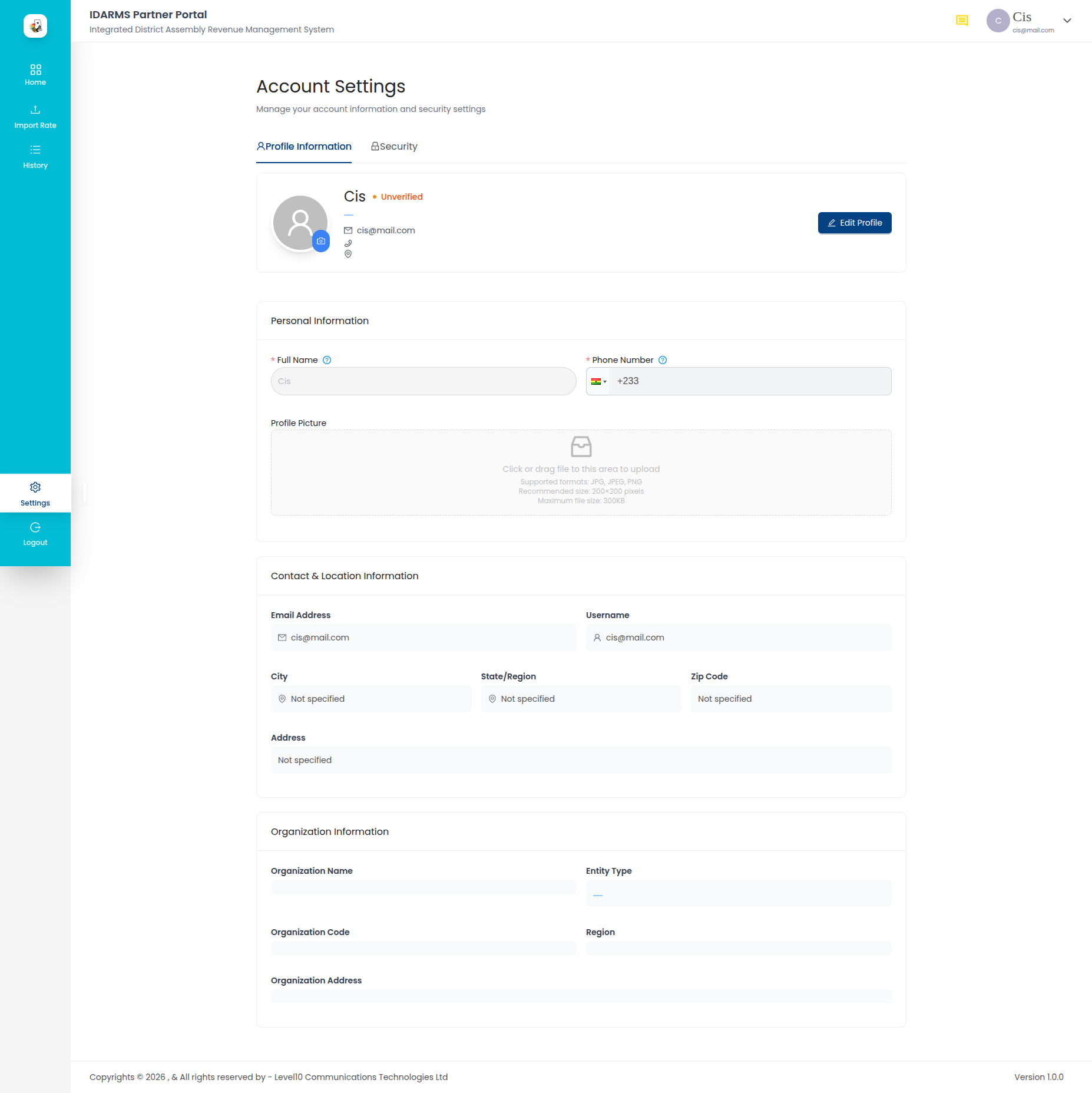
Profile Information
| Field | Required | Notes |
|---|---|---|
| Full name | Yes | Editable text field |
| Phone number | Yes | Editable text field |
| Profile picture | No | Upload/change profile image |
Organization Information
Read-only display of the partner's organization details:
| Field | Description |
|---|---|
| Organization name | Registered partner organization name |
| Entity type | Type of entity (e.g. Company, Individual) |
| Entity code | Unique entity identifier |
| Region | Geographic region |
| Address | Organization address |
Organization Fields
Organization information is read-only and cannot be edited from the Settings screen. Contact the system administrator to update organization details.
Security Tab
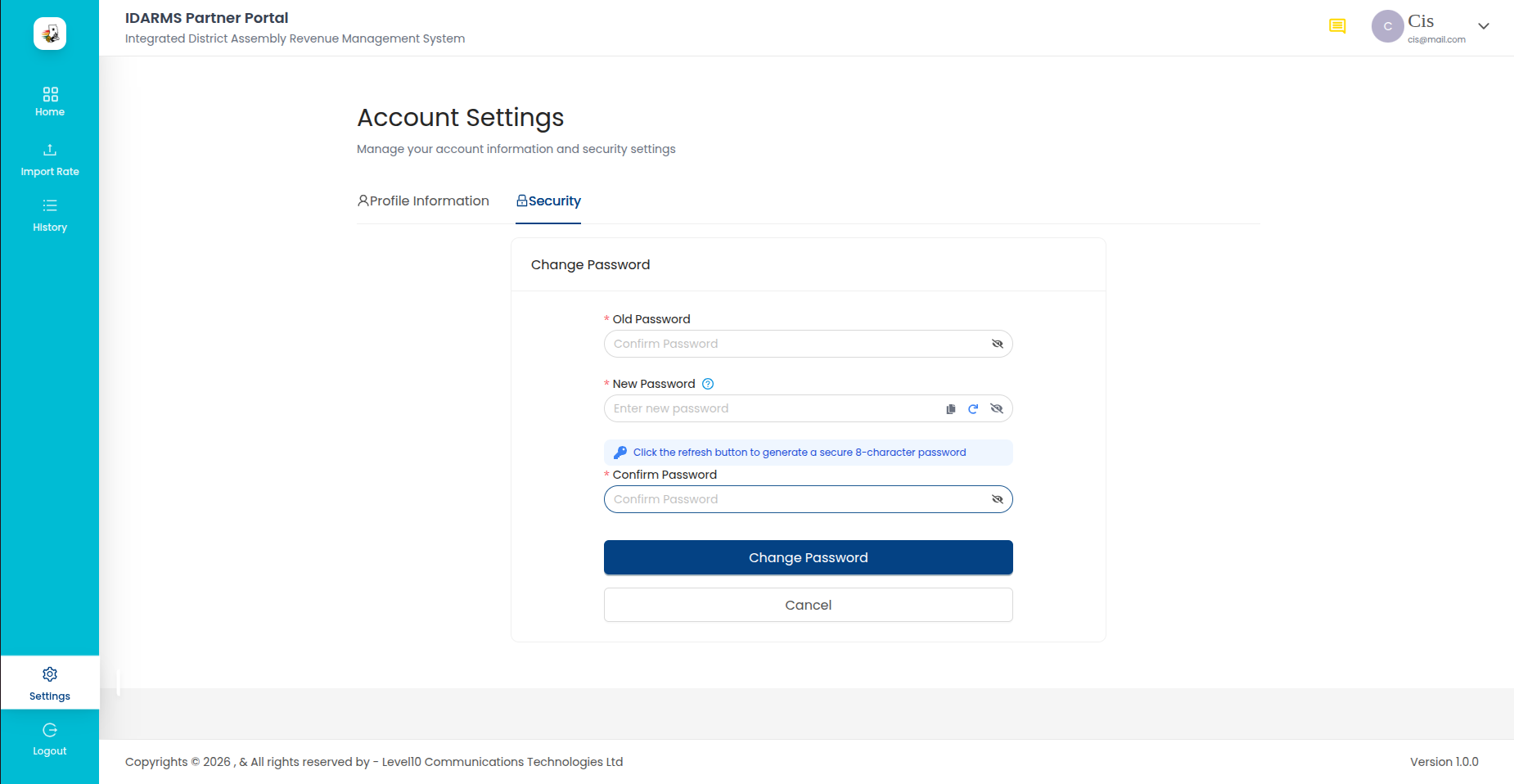
Change Password
| Field | Required | Notes |
|---|---|---|
| Current password | Yes | Must match the existing password |
| New password | Yes | Must meet password strength requirements |
| Confirm new password | Yes | Must match the new password |
Change Password button submits the request to POST /lvd/changepassword.
Password Strength Requirements
| Rule | Description |
|---|---|
| Minimum length | At least 8 characters |
| Uppercase letter | At least one uppercase letter |
| Lowercase letter | At least one lowercase letter |
| Number | At least one number |
| Symbol | At least one special character |
Tab Navigation
| Tab | Content |
|---|---|
| Profile | Profile editing and organization info |
| Security | Password change |
Things to check
- Profile fields (full name, phone) save correctly and persist after page reload
- Profile picture upload updates the avatar across the portal
- Organization information fields are genuinely read-only — no edit cursor or input possible
- Current password validation rejects incorrect passwords with a clear error
- New password is validated against all strength rules before submission
- Confirm password must match new password — mismatch shows a clear error
- After successful password change, the old password no longer works
- Tab switching between Profile and Security preserves any unsaved changes (or warns about them)
- Phone number format is validated before save